
Headless CMS for IoT: Managing Content Across Connected Devices
Deliver seamless, scalable, and centralized content experiences across connected IoT devices with the flexibility of a headless CMS.
Introduction: The Evolution of E-commerce Pricing
In traditional e-commerce platforms, a price is usually just a simple field attached directly to a product. But what happens when you have a global B2B and B2C business with multiple currencies, regional storefronts, seasonal discounts, and specialized customer group tiers? Storing all those prices directly on the product record quickly becomes a performance bottleneck.
Commercetools solves this with Standalone Prices. By decoupling the price from the product data, you can manage millions of complex price points without constantly updating the core product. The Prices menu in the Merchant Center is your dedicated workspace for this architecture. Let’s break down how to navigate it.
The Sidebar Dropdown—A Focused Toolkit
Clicking the “Prices” icon (the banknote symbol) in the left-hand navigation reveals a highly focused, two-option dropdown menu. Because standalone prices are their own distinct entity in the Commercetools backend, this menu is streamlined for quick access.
Here is what you will find:
-
Standalone price list
This is your primary control center. Clicking this link takes you to the main dashboard where you can view, search, and manage all your independently floating price points across your entire catalog.
-
Add standalone price
A direct shortcut for when you need to quickly generate a new price point. This launches the creation wizard where you can define the value, currency, and the specific conditions (like country or customer group) for the new price.
Decoding the Standalone Price Dashboard
When you navigate to the Standalone price list, you are greeted with a comprehensive data table designed to help you parse highly specific pricing rules.
The Golden Rule: Embedded vs. Standalone
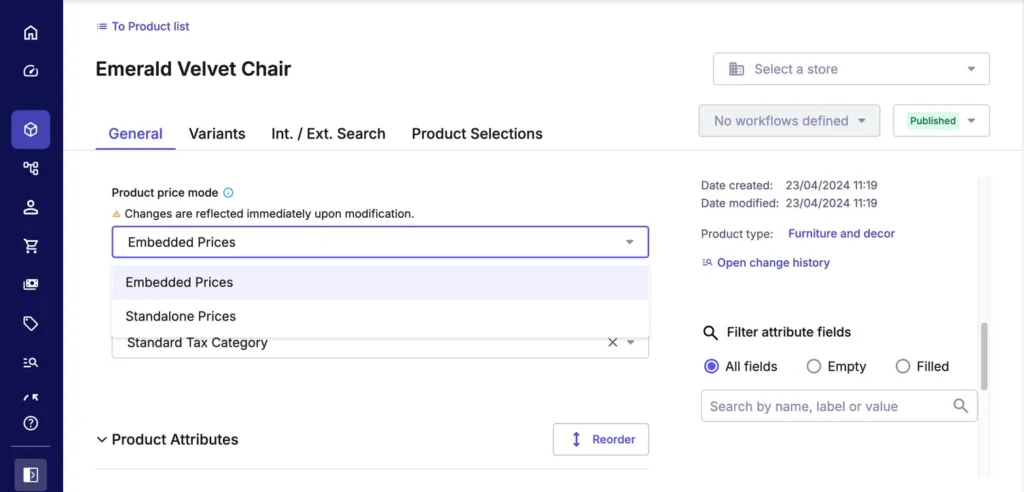
Right at the top of the dashboard, there is a crucial system note: “Note: Only standalone prices are displayed. To view embedded prices select the SKU.” * What this means: Commercetools technically supports both “embedded” prices (attached directly inside the product data) and “standalone” prices (managed here). This dashboard strictly filters for standalone prices. If you are looking for an old embedded price, you will need to go back to the Products menu and look inside the specific product variant.
Search and Creation
-
Search Bar
You can quickly find specific prices using the search input: Search by SKU or Price Key. This is essential when a single SKU might have 50 different price variations attached to it.
-
Add standalone price
The primary call-to-action button, mirroring the sidebar shortcut, allowing you to build new pricing tiers on the fly.
The Data Table: Understanding Pricing Granularity
The columns in the standalone price table beautifully illustrate how flexible Commercetools is. A single SKU can have multiple rows here, each defined by different parameters:
-
SKU & Key
Identifies exactly which product variant this price belongs to.
-
Currency & Price
The actual monetary value (e.g., USD $49.99 vs. EUR €45.00).
-
Price Tiers
Indicates if there are volume discounts (e.g., buy 1 for $10, buy 50 for $8 each).
-
Active
A simple toggle status showing if the price is currently live.
-
Channels
Allows you to set a price specifically for an "In-Store POS" channel versus the "Online Website" channel.
-
Valid From & Valid Until
Perfect for scheduling flash sales or holiday pricing in advance.
-
Customer Group
Allows you to display a specific price only to "VIP Members" or "B2B Wholesalers."
-
Country
Ensures regional pricing accuracy without needing separate storefronts.
Conclusion: Precision Control Over Your Revenue
The Prices menu in the Commercetools Merchant Center might look simple at first glance, but it acts as the gateway to one of the platform’s most powerful features. By mastering the Standalone price list, your merchandising and finance teams gain total control over complex, global pricing strategies—all without ever having to touch the core product catalog.